Quickbooks to Salesforce Integration 2026
⏱ 6 min read
QuickBooks to Salesforce Integration connects accounting data with customer relationship management, helping businesses reduce manual data entry and coordinate sales and finance workflows. The right approach depends on whether you use QuickBooks Online or Desktop, which records need to sync, how frequently they must update, and how much customization your business requires.
Does Salesforce Integrate with QuickBooks?
Yes. Salesforce integrates with QuickBooks through three main approaches: a prebuilt Salesforce AppExchange connector, middleware or an integration platform (iPaaS), and a custom API integration. AppExchange connectors are often the quickest starting point, middleware supports more complex workflows, and custom APIs offer greater control over data mapping, business logic, and synchronization.
QuickBooks Salesforce Integration at a Glance
Customer Sync
Coordinate customer and account records between CRM and accounting.
Invoice Automation
Create invoices from approved Salesforce business events where configured.
Payment Visibility
Surface invoice and payment information for relevant Salesforce users.
When QuickBooks and Salesforce work together, sales, finance, and operations teams can work from more consistent customer and transaction information. The integration should be designed around the business process rather than simply copying every field between systems.
3 Ways to Integrate Salesforce and QuickBooks
The best integration method depends on your accounting edition, data volume, required sync frequency, workflow complexity, and internal technical resources.
| Approach | Best Fit | Sync Direction | Setup Effort | Who Maintains It? |
|---|---|---|---|---|
| AppExchange connector | Standard customer, invoice, and payment workflows supported by the selected product. | One-way or two-way, depending on connector configuration and features. | Low to medium | Connector vendor maintains the product; the Salesforce admin manages configuration and access. |
| Middleware / iPaaS | Multiple applications, complex mapping, orchestration, and centralized monitoring. | One-way or bidirectional, based on designed flows. | Medium to high | The integration team or implementation partner maintains flows, credentials, and monitoring. |
| Custom REST API integration | Custom business logic, specialized data mapping, and control over API behavior. | One-way or bidirectional, based on the integration design. | Medium to high | The development or managed services team maintains code, authentication, tests, and error handling. |
How should you choose?
Start by evaluating available connectors if your requirements are standard. Consider middleware when several systems or complex transformations are involved. Choose custom API development when you need specific behavior, integration logic, or greater control over the end-to-end workflow.
For a more technical walkthrough, see Kizzy Consulting’s QuickBooks and Salesforce REST API integration guide.
Is There a Salesforce QuickBooks Connector on AppExchange?
Yes. Salesforce AppExchange lists third-party applications that connect Salesforce with QuickBooks Online. For example, the Salesforce to QuickBooks Online Connector by Aonflow describes support for synchronizing customer and sales data, transactions, product details, and invoice workflows.
Before selecting a connector, evaluate:
- Whether it supports your exact QuickBooks edition and Salesforce configuration.
- Which objects and fields it synchronizes, and in which direction.
- Whether synchronization is real-time, event-driven, or scheduled.
- How it handles duplicate records, failed transactions, retries, and reconciliation.
- Pricing, licensing, support arrangements, and vendor release history.
- Security controls, permissions, and how credentials are stored.
Connector capabilities vary by vendor and plan. Verify the current feature set and supported QuickBooks edition before committing to a solution.
Checkout – Best Practices for Salesforce Integration
QuickBooks Online vs. QuickBooks Desktop
The QuickBooks edition matters because the available integration architecture is different.
QuickBooks Online
QuickBooks Online provides cloud-based accounting APIs. A custom integration can use the Intuit Developer Portal, OAuth 2.0 authorization, the QuickBooks Online Accounting API, and Salesforce Named Credentials with Apex callouts or middleware.
This approach is suitable for supported cloud workflows such as customer synchronization, invoice creation, and retrieving payment information.
QuickBooks Desktop
QuickBooks Desktop does not use the same cloud REST API integration model as QuickBooks Online. Desktop integrations commonly use the QuickBooks Desktop SDK and qbXML, with the QuickBooks Web Connector acting as a bridge between a web service and the local QuickBooks installation.
Middleware or a supported third-party connector may also be an option, depending on the product and deployment requirements.
For technical details, see Intuit’s documentation for the QuickBooks Web Connector.
Implementation note: confirm Desktop support before publishing a delivery claim.
The Web Connector and SDK are documented QuickBooks Desktop integration routes. However, the specific route Kizzy uses for a particular customer, supported Desktop version, hosting arrangement, and synchronization schedule must be confirmed with the delivery team. Do not present either route as Kizzy’s standard implementation until it is verified.
What Data Syncs and Which System Owns It?
Before building an integration, define the system of record for each type of information. Without clear ownership, two-way synchronization can overwrite valid changes, create duplicates, or produce mismatched financial records.
| Business Data | Salesforce Record | QuickBooks Record | Suggested Ownership |
|---|---|---|---|
| Customer or company | Account | Customer | Choose a master system or define field-level ownership. |
| Sales deal | Opportunity | May contribute to an invoice after approval or a defined sales event. | Salesforce usually owns the opportunity lifecycle. |
| Order or fulfillment request | Order, where used | May map to an invoice or sales transaction, depending on the workflow. | Define ownership based on the order-to-cash process. |
| Invoice | Invoice object or custom invoice record, if configured | Invoice | QuickBooks commonly owns the accounting invoice and its financial state. |
| Payment status | Mapped status field or related payment record | Payment and invoice balance information | QuickBooks commonly owns payment status; Salesforce receives the relevant update. |
| Products and prices | Product and price book records | Products or service items | Select one authoritative catalog or define ownership for each field. |
Important: these are example mappings, not automatic one-to-one relationships. A Salesforce Opportunity is not itself a QuickBooks invoice. The integration must define when an invoice is created, how products, tax, currency, terms, and customer details are mapped, and how the two systems link related records.
For each mapped record, store the external system’s identifier in a suitable Salesforce field or mapping structure. Use that identifier to match records during subsequent updates and reduce duplicate creation.
What Is QuickBooks?
QuickBooks, developed by Intuit, is accounting software used by businesses to manage financial operations. Depending on the product and subscription, it can support invoicing, expense tracking, bank reconciliation, tax-related workflows, payroll integrations, inventory functions, and financial reporting.
- Customer invoicing and billing
- Expense tracking and reconciliation
- Financial reports and transaction records
- Customer and product or service information
- Cloud access in QuickBooks Online or locally managed workflows in supported Desktop editions
Benefits of QuickBooks Salesforce Integration
Automated Workflows
Trigger supported invoice and financial workflows from Salesforce events after the appropriate validation or approval.
Less Duplicate Entry
Reduce repetitive data entry by transferring approved data through a defined integration flow.
Better Financial Visibility
Show relevant invoice and payment information in Salesforce to help teams follow up with customers.
More Consistent Data
Use validation, external IDs, and reconciliation to reduce duplicate records and mismatched values.
Security, Error Handling and Monitoring
A production-ready QuickBooks Salesforce integration needs more than a successful API call. It should protect credentials, validate financial data, recover from transient failures, and give administrators a way to investigate synchronization issues.
Authentication and Access
- Use OAuth 2.0 for supported QuickBooks Online API access.
- Use Salesforce Named Credentials and the supported external authentication configuration.
- Never hard-code client secrets, access tokens, or refresh tokens in Apex.
- Grant integration users only the permissions they need.
Error Handling
- Validate required fields before sending data.
- Handle API limits, expired credentials, and temporary service errors.
- Use controlled retry logic with backoff for transient failures.
- Prevent duplicate invoices when a request is retried.
Monitoring and Reconciliation
- Log integration status, timestamps, external IDs, and actionable error details.
- Alert the responsible team when critical syncs fail.
- Track pending, successful, and failed transactions.
- Reconcile invoice totals and payment status against the accounting source.
For larger integration environments, Salesforce Integration Services from Kizzy Consulting can help define API architecture, middleware flows, secure authentication, monitoring, and error recovery across connected business applications.
Where Salesforce Revenue Cloud Fits
For businesses with a more advanced quote-to-cash process, Salesforce Revenue Cloud can help manage product configuration, pricing, quotes, contracts, orders, and supported billing workflows. QuickBooks may continue to serve as the accounting system for invoicing, payments, and financial records.
An integration can transfer approved commercial information from Salesforce into QuickBooks when an order or other business event meets the agreed criteria, then return relevant invoice and payment status to Salesforce. The exact handoff depends on the systems, Revenue Cloud capabilities in use, and accounting workflow. Read Kizzy’s Salesforce Revenue Cloud Implementation Guide for more on the revenue lifecycle and implementation planning.
QuickBooks Online API Integration with Salesforce: Step-by-Step
This example describes a custom QuickBooks Online integration. The exact Salesforce authentication screens and available settings may vary with the Salesforce release and authentication configuration.
Step 1: Create a QuickBooks Developer Account
Create or access your developer account in the Intuit Developer Portal. Review the QuickBooks Online Accounting API documentation for the entities and operations required by your integration.
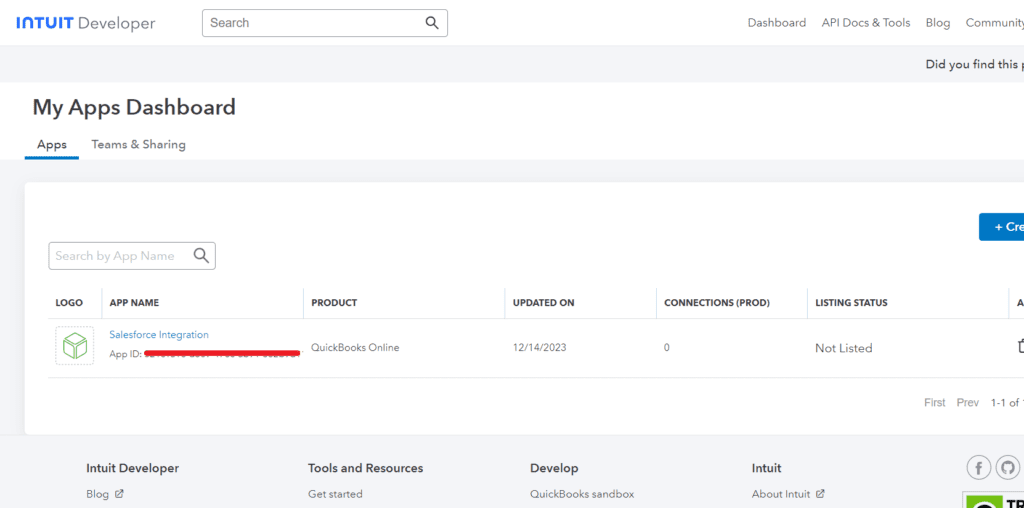
Step 2: Create an App in the Intuit Developer Portal
Create an application and configure its required API access and OAuth settings.
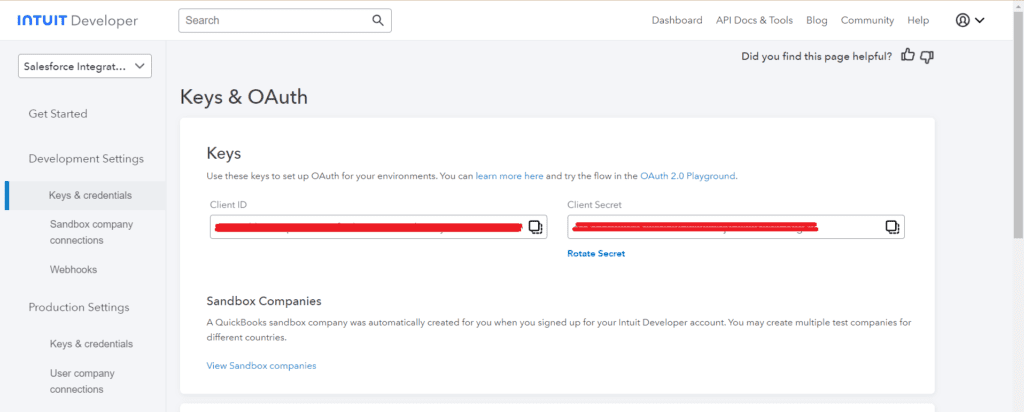
Step 3: Obtain the Client ID and Client Secret
Use the credentials provided for your application when configuring the supported authentication flow. Keep the client secret private and do not place it in public code or client-side scripts.
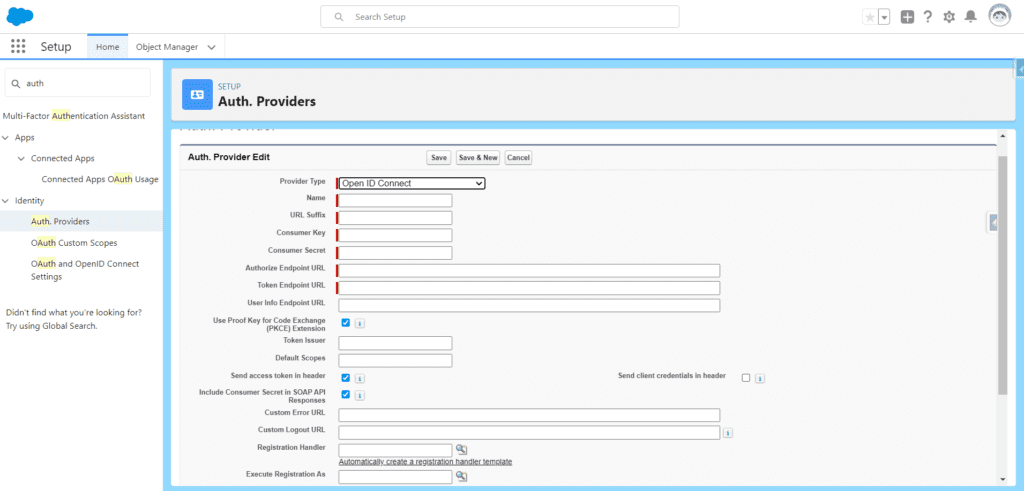
Step 4: Configure Salesforce Authentication
In Salesforce Setup, configure the supported external authentication mechanism for QuickBooks Online. Depending on the org and authentication model, this can involve an Auth Provider, External Credentials, and a Named Credential.
Step 5: Configure the OAuth Credentials
Enter the application credentials in the appropriate secure configuration. Set the authorization and token endpoints, scopes, and other required parameters according to the current Intuit documentation and the selected OAuth flow.
Step 6: Configure the Redirect URI
Use the callback or redirect URI required by the Salesforce authentication configuration. Register the matching URI in your Intuit application. The URI configured on both sides must match the supported OAuth setup.
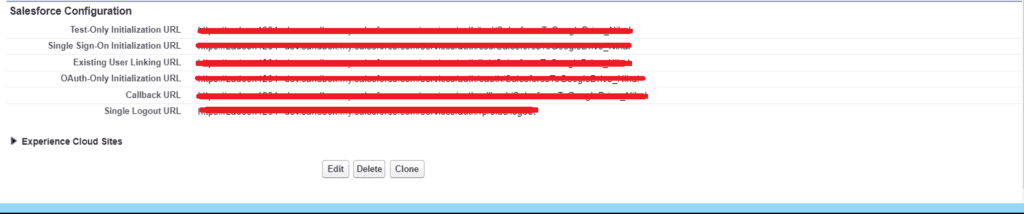
Step 7: Register and Test the Redirect URI
Save the matching redirect URI in the Intuit application and test the authorization flow in a sandbox environment before using production credentials.

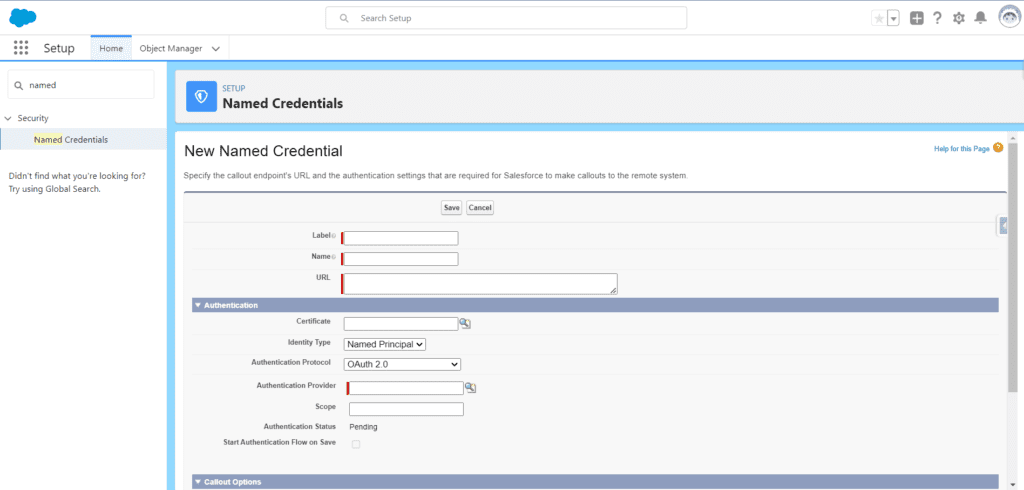
Step 8: Create a Salesforce Named Credential
In Salesforce Setup, create a Named Credential for the QuickBooks API endpoint and associate it with the appropriate external authentication configuration.
- Use the correct QuickBooks Online API base URL for the environment.
- Configure the required authentication and principal settings.
- Grant access to the integration user or execution context as appropriate.
- Use the Named Credential from Apex instead of embedding tokens in code.
Step 9: Verify Authentication and Configure Company Information
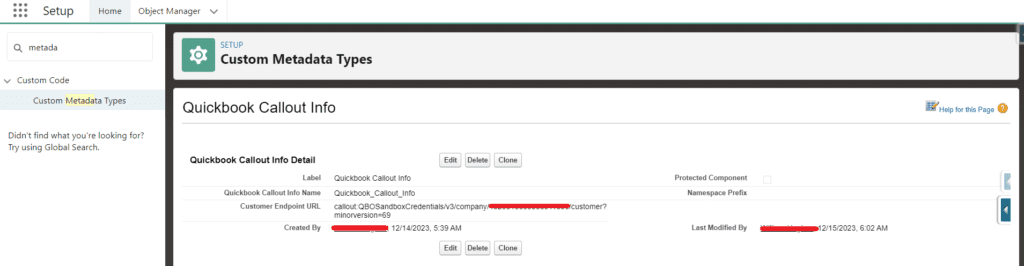
Complete the OAuth authorization process and confirm that the connection can make an authenticated API request. Store non-secret integration configuration in an appropriate configuration mechanism. For QuickBooks Online, the company identifier is commonly referred to as the realm ID; use the correct value for the authorized company and environment.
Step 10: Create the Apex Integration
Use Apex HTTP callouts to send authenticated requests to supported QuickBooks Online API endpoints. For example, a customer creation request uses the customer endpoint, while invoice creation uses the invoice endpoint. The request body must follow the schema required by the selected API operation.
- Endpoint pattern:
callout:QB_NAMED_CRED/v3/company/{realmId}/customeror the appropriate invoice endpoint. - Method: POST for creating supported records.
- Content type: application/json.
- Response handling: Validate HTTP status and parse the returned record identifier or error details.
Check the current QuickBooks Online API documentation for required fields, supported operations, version parameters, and endpoint requirements before deploying.
Apex Integration Code Example
The following illustrative example sends a customer-creation request through a Salesforce Named Credential. Replace the example values with validated data and add production-grade validation, logging, duplicate prevention, and error handling before using a similar pattern in a live org.
public class QuickBooksCustomerService {

    public static void createCustomer(String realmId) {
        HttpRequest req = new HttpRequest();

        req.setEndpoint(
            'callout:QB_NAMED_CRED/v3/company/' +
            EncodingUtil.urlEncode(realmId, 'UTF-8') +
            '/customer'
        );

        req.setMethod('POST');
        req.setHeader('Content-Type', 'application/json');
        req.setHeader('Accept', 'application/json');

        Map<String, Object> customer = new Map<String, Object>{
            'DisplayName' => 'Example Customer'
        };

        req.setBody(JSON.serialize(customer));

        Http http = new Http();
        HttpResponse res = http.send(req);

        Integer statusCode = res.getStatusCode();

        if (statusCode >= 200 && statusCode < 300) {
            System.debug('QuickBooks customer request succeeded.');
            // Parse the response and save the returned QuickBooks ID.
        } else {
            // Log a sanitized error and route it for investigation.
            System.debug(
                'QuickBooks request failed. HTTP status: ' +
                statusCode
            );
        }
    }
}
This is a starting example, not a complete production integration. Confirm the API payload, OAuth configuration, Named Credential setup, and error-handling requirements for your environment. Avoid logging customer data, secrets, or access tokens.
Postman Testing Flow
1. Configure OAuth 2.0
Follow Intuit’s current OAuth authorization flow to obtain an access token. Use a sandbox company for development and testing.
2. Configure the Postman Environment
Set up environment variables for the base URL, realm ID, and authorization values needed by your test requests. Use Postman’s supported secret or sensitive-variable features for credentials.
- baseUrl: QuickBooks API base URL for the selected environment.
- realmId: QuickBooks Online company identifier.
- accessToken: OAuth access token.
- clientId and clientSecret: Application credentials, handled securely.
- refreshToken: Refresh token, if required by your configured flow.
3. Obtain an Access Token
Complete the required authorization process and request a token according to Intuit’s OAuth documentation. Do not assume that a token from one company or environment will authorize requests to another.
4. Test a Customer or Invoice Request
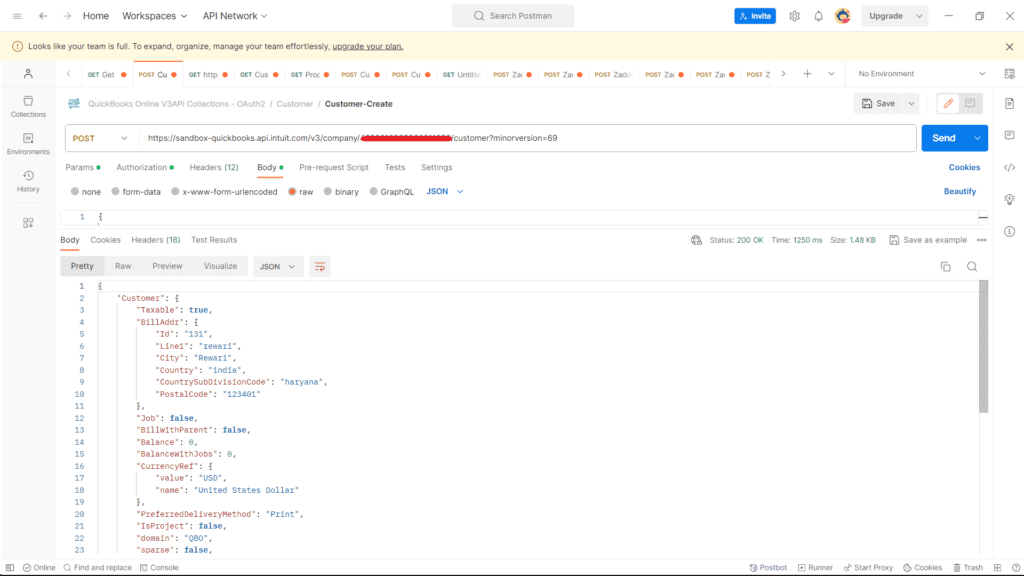
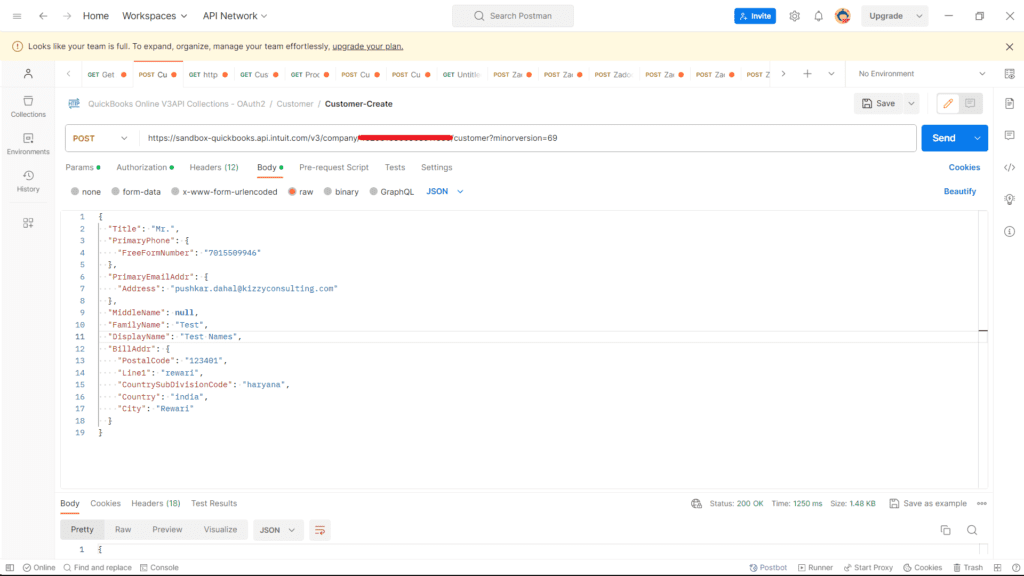
Send a request to the appropriate API endpoint with a valid JSON payload and the required authorization headers. Use the customer endpoint for a customer test and the invoice endpoint for an invoice test.
5. Validate the Response
Check the HTTP status, response body, returned record identifier, and the resulting record in the QuickBooks sandbox. Test invalid input, expired credentials, duplicate submissions, and recoverable API errors as well.
Top QuickBooks Salesforce Integration Use Cases
Automated Invoice Creation
Create QuickBooks invoices from approved Salesforce Opportunities, Orders, or other configured business events.
Customer Synchronization
Match and synchronize customer details using external IDs and defined field ownership.
Payment Status Tracking
Display relevant invoice balances and payment status in Salesforce for sales and account teams.
Revenue Reporting
Combine CRM and financial information for more complete business reporting and follow-up.
QuickBooks Salesforce Integration FAQs
1. Does Salesforce integrate with QuickBooks?
Yes. Salesforce can integrate with QuickBooks through a prebuilt AppExchange connector, middleware or an iPaaS platform, or a custom API integration. The best option depends on the QuickBooks edition, data that needs to sync, workflow complexity, required sync frequency, and maintenance needs.
2. How do I integrate QuickBooks Online with Salesforce?
Choose a connector, middleware platform, or custom API approach. For a custom integration, create an app in the Intuit Developer Portal, configure OAuth 2.0, set up Salesforce’s supported authentication configuration and Named Credential, and use Apex or middleware to call the QuickBooks Online Accounting API. Map the required records, test in a sandbox, and implement error handling and reconciliation before going live.
3. Can Salesforce integrate with QuickBooks Desktop?
Yes, but the approach differs from QuickBooks Online. QuickBooks Desktop integrations commonly use the QuickBooks Desktop SDK and qbXML, with the QuickBooks Web Connector enabling a web service to communicate with a local QuickBooks installation. Confirm compatibility with the specific Desktop edition, version, hosting arrangement, and connector before selecting an implementation route.
4. Is there a Salesforce QuickBooks connector on AppExchange?
Yes. Salesforce AppExchange lists third-party QuickBooks integrations, including connectors for QuickBooks Online. Compare supported editions, object coverage, sync direction, refresh behavior, security, pricing, and support before choosing a connector. You can review the Salesforce to QuickBooks Online Connector listing as one example.
5. What is the best way to integrate Salesforce and QuickBooks?
A prebuilt connector is often a practical starting point for standard workflows. Middleware is useful for multi-system processes and complex orchestration. Custom API development provides greater control over business rules and data mapping but requires ongoing technical maintenance. The best option is the one that meets your requirements for functionality, security, cost, reliability, and long-term support.
6. Can Salesforce create QuickBooks invoices automatically?
Yes. A connector, middleware workflow, or custom integration can create a QuickBooks invoice when a defined Salesforce event occurs, such as an approved order or an Opportunity reaching a specified stage. The implementation should validate required fields, map products and prices, prevent duplicate invoices, record the QuickBooks invoice ID, and handle failed requests safely.
7. What data can sync between Salesforce and QuickBooks?
Typical integrations keep customer information synchronized between the two systems, with ownership defined for each field, create QuickBooks invoices from Salesforce Opportunities or other CRM events, surface invoice and payment status inside Salesforce, and combine CRM and financial data for revenue reporting.
8. How is a QuickBooks Salesforce integration secured?
The integration authenticates with OAuth 2.0 through a Salesforce Auth Provider and stores the connection in a Named Credential, so Apex code calls QuickBooks without exposing client secrets or tokens. Configuration values such as endpoints can be kept in custom metadata.
Need a Broader Salesforce Integration Strategy?
QuickBooks is often one part of a wider business technology ecosystem. Kizzy Consulting helps businesses connect Salesforce with accounting platforms, ERP systems, APIs, data platforms, and other enterprise applications.
Explore Salesforce Integration Services to learn how secure integrations can streamline your technology stack.
Conclusion
QuickBooks Salesforce Integration can connect customer, sales, invoice, and payment workflows so sales and finance teams can work with more consistent information. The three main approaches are AppExchange connectors, middleware or iPaaS, and custom API integration.
Before choosing an approach, identify whether you use QuickBooks Online or Desktop, define which system owns each data field, and plan authentication, error handling, monitoring, and reconciliation. A well-designed integration should support the actual business process and remain maintainable as requirements evolve.
Need Help with QuickBooks Salesforce Integration?
Kizzy Consulting helps businesses plan and build Salesforce integrations that connect CRM data with financial systems and business applications. From API architecture and OAuth 2.0 to Apex development, integration monitoring, and ongoing optimization, our team can help align the solution with your workflows.
Kizzy Consulting supports businesses with Salesforce implementation, integration, consulting, and managed services. To discuss your Salesforce and QuickBooks requirements, contact our Salesforce experts or email [email protected].