Agentforce Voice Agent Setup Guide
⏱ 3 min read
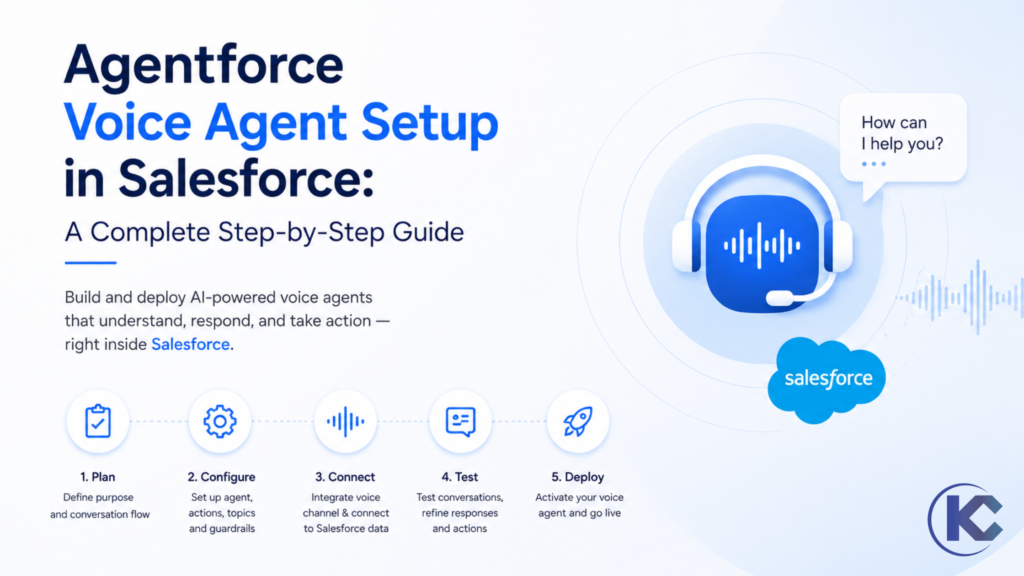
Agentforce Voice is an AI-powered voice agent within the Salesforce platform that helps organizations automate customer interactions through natural, real-time conversations. It can understand customer requests and take actions directly in Salesforce, such as updating records, creating cases, and retrieving relevant information.
This blog walks you through the step-by-step process of setting up an Agentforce Voice Agent and testing its functionality. It covers the essential configurations, voice channel setup, and testing steps needed to ensure your voice agent is configured correctly and performs as expected.
By Sanjeet Mahajan – CEO and Founder of Kizzy Consulting
Executive Quick Answer
What is Agentforce Voice and what does it do?
Agentforce Voice enables conversational AI agents to speak and understand natural language conversations over phone channels. Built on the Salesforce platform, it deeply integrates with Service Cloud Voice to handle complex conversations, understand customer intent, execute CRM workflows, and seamlessly escalate to a human agent via Omni-Channel when required.
24/7
Agentforce Voice provides round-the-clock support, reducing wait times and instantly boosting customer satisfaction metrics.
100%
Natively built on Salesforce, meaning zero data sync delays and instant CRM action execution within your existing ecosystem.
Seamless
Integrated escalation natively transfers contexts and conversation transcripts directly to human agents without losing history.
Prerequisites for Implementation
Before working with the Agentforce Voice Agent, we need to ensure that the environment is properly prepared.
- Licenses: Ensure that your Salesforce org has the Agentforce License along with the Service Cloud Voice License.
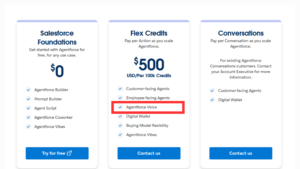
- Enable Service Cloud Voice: This step activates the underlying voice infrastructure that allows calls to be made, received, and managed directly within Salesforce.
- Assign Permissions: Grant the right permissions to the people involved by assigning the following permission sets:
- Service Cloud Voice User (Partner Telephony)
- Contact Center Admin (Partner Telephony)
- Contact Center Agent (Partner Telephony)
Note: Agentforce Voice may not be directly available in all orgs. If Service Cloud Voice is already enabled, most of the required configurations will be available by default. In such cases, reach out to your Account Executive to activate the feature. Currently, Agentforce Voice can be tested only in the Voice Preview window. To make the agent interactive on websites, a Digital Channel (Coming Soon) is required.
Step-by-Step Setup: Building the Agent
1. Enabling Agentforce Voice
Navigate to Setup. Search for Agentforce Voice Setup and open it. Enable the two required options:
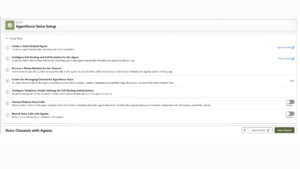
- Connect Related Voice Calls
- Record Voice Calls with Agents
When you enable Connect Related Voice Calls, Salesforce asks for confirmation. Click on Enable.
2. Creating the Voice Agent
Navigate to the Agentforce Builder, where the Salesforce AI agent is created. Create a new Service Agent. Behind the scenes, this agent needs an actual user to operate. Create a new Agent User and assign the three required permission sets mentioned in the prerequisites.
3. Giving the Agent a Voice Connection
Inside the Agentforce Builder, navigate to the Connections section and click New. Choose Telephony, then select Add to Agent. A confirmation pop-up will ask if you want to optimize for voice. Click Yes, Optimize for Voice. Once completed, you’ll see Telephony listed under Connections, confirming the agent can handle calls.
4. Shaping the Agent’s Voice
Click on Telephony and open Voice Settings. In the Basic section, choose the voice your AI agent will use when speaking. In the Advanced section, fine-tune the tone and define custom pronunciations for specific words. This ensures the agent sounds natural and says important terms correctly.
Need Help Implementing Agentforce?
Ensure your Salesforce AI readiness and optimize your customer service operations. Kizzy Consulting offers expert guidance on Agentforce deployment and AI automation.
Call Routing and Escalation
Next, we configure intelligent Inbound Routing so incoming customer calls are intelligently routed—either to the AI agent or to a human using Omni-Channel. Escalation paths ensure that complex, unresolved calls are handed off gracefully.
| Flow Setup Step | Action Details |
|---|---|
5. Configure Inbound Routing |
Open Flow Builder and create a new Omni-Channel Flow. Create a resource for `Agentforce Voice Inbound Queue` and `Agentforce Voice Agent Route Config`. Select the Service Agent in the Route To section and set the fallback queue. |
6. Plan for Escalation |
Create a separate Escalation Omni-Channel Flow. Set an Assignment action where the variable `reasonForNotRouting` Equals `Disconnect`. Connect actions, save, and activate the flow. |
7. Assign Escalation Flow |
Return to the Service Agent and assign the newly created escalation flow to instruct the AI agent when to ask a human for help. |
Finalizing Channels & Testing Your Agent
8. Getting a Phone Number
Now it’s time to give your agent a real phone number. Open Telephony Settings (in Agentforce Voice Setup). Click on New Number, select the Country and Number Type, search for an area code, and click Finish.
9. Creating the Voice Channel
Click on New Channel. Fill in the required details and select the Omni-Channel Flow (the Inbound Flow) assigned to the Service Agent. Click Save, then click on the Voice Channel that was created and activate it.
Note: To enable call escalation, the Partner Telephony Setup must be configured. A telephony provider (for example, Amazon Connect or Genesys) is selected to handle escalated calls from the AI. When escalated, notifications are received in the Service Cloud Console.
10. Test Your Agent
You can test it directly in the Agentforce Builder by switching from Lightning Experience to Voice Preview. Change the input mode to Voice Mode and start speaking! Alternatively, call the newly procured phone number from your actual phone to experience the live AI contact center agent.
Frequently Asked Questions
What is Agentforce Voice?
It is Salesforce’s integrated voice capability that allows AI agents built with Agentforce to speak with customers, interpret voice inputs, and execute CRM automation autonomously, elevating standard text chatbots to fully conversational contact center agents.
How does Agentforce Voice differ from Service Cloud Voice?
While they work seamlessly together, Service Cloud Voice is the underlying telephony infrastructure that allows human reps to handle calls inside the Service Console. Agentforce Voice extends this by enabling the AI agent to natively speak and interact over those same telephony channels.
Can I integrate existing telephony providers with Agentforce Voice?
Yes. Through the Salesforce Voice Partner Ecosystem and Partner Telephony, you can use existing providers like Amazon Connect or Genesys to manage escalated calls from the Agentforce AI.