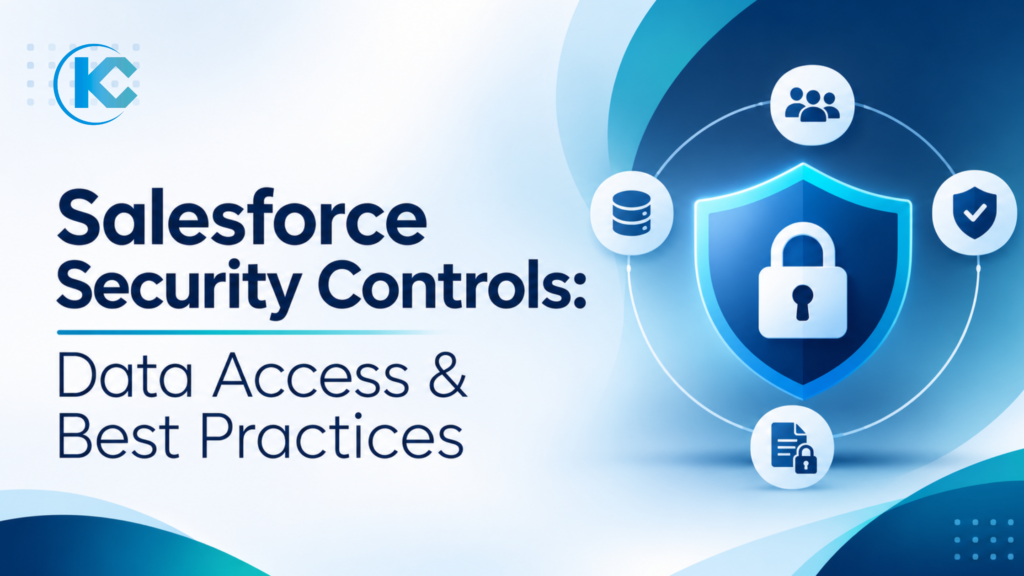
Salesforce Security Controls: Complete Guide to Data Access, Permissions & Best Practices
⏱ 8 min read
A Salesforce organization can contain sensitive customer records, financial information, sales data, employee details, and business-critical workflows. Without properly configured Salesforce security controls, users may gain access to information they do not need, modify records outside their responsibilities, or expose data through custom applications and integrations. This guide explains how to secure Salesforce through authentication, profiles, permission sets, object-level security, field-level security, record-level sharing, and secure Apex development. It also includes a practical access management framework and an implementation checklist for Salesforce administrators and developers.
TL;DR: Salesforce Security at a Glance
- Authentication verifies the identity of a user through login credentials, multi-factor authentication, and identity verification.
- Authorization determines which Salesforce objects, fields, records, and features a user can access.
- Profiles and permission sets control object permissions, field permissions, and system capabilities.
- Organization-wide defaults, role hierarchies, and sharing rules determine record-level access.
- Least privilege means giving users only the permissions necessary for their responsibilities.
- Secure Apex development must enforce sharing, CRUD, and field-level security instead of assuming that the UI automatically protects database operations.
- Regular access reviews, login monitoring, and security testing help identify excessive permissions and configuration gaps.
01
Authentication
Who are you?
02
Authorization
What can you do?
03
Data Access
Which data can you use?
Contents
hide
What Are Salesforce Security Controls?
Salesforce security controls are the platform settings, permissions, authentication mechanisms, and access policies that determine how users interact with an organization’s Salesforce environment. They protect business data by controlling who can log in, which features users can access, what information they can view or modify, and which records they can work with.
These controls operate across multiple layers. For example, a sales representative might be allowed to access the Account object but restricted from viewing confidential financial fields. The representative may also be able to access only the Accounts assigned to their territory.
Salesforce security is therefore not a single setting. It is a combination of authentication, object permissions, field permissions, record sharing, application permissions, and secure development practices.
Authentication vs. Authorization
These terms are related but serve different purposes:
- Authentication: Confirms the identity of a user attempting to access Salesforce.
- Authorization: Determines the resources, records, fields, and actions that the authenticated user is permitted to access.
A successful login does not mean a user should have unrestricted access to the Salesforce organization.
The Four Main Layers of Salesforce Data Security
| Security Layer | What It Controls | Salesforce Example |
|---|---|---|
| Object-Level | Access to entire objects | Can a user access Opportunities? |
| Field-Level | Access to individual fields | Can a user view Opportunity Amount? |
| Record-Level | Access to individual records | Can a user view another sales representative’s Opportunity? |
| Organization-Level | Login and org-wide access policies | Can a user log in from an untrusted IP address? |
1. Salesforce Authentication and Login Security
Authentication is the first security checkpoint in Salesforce. Before a user can access CRM data or application features, Salesforce must establish that the person attempting to log in is an authorized user.
A compromised account can expose customer records, sales pipelines, service information, and administrative functionality. Organizations should therefore combine strong identity verification with appropriate login restrictions and session controls.
Important Salesforce Authentication Controls
Multi-Factor Authentication (MFA)
Requires additional identity verification beyond a password. MFA makes it harder for attackers to use stolen credentials to access an account.
Single Sign-On (SSO)
Allows users to authenticate through a centralized identity provider. It can simplify access management and support consistent identity policies.
Login IP Restrictions
Restrict access to approved IP ranges where appropriate. Administrators should account for legitimate remote access and business continuity requirements.
Login Hours
Define permitted login windows for users through applicable profile settings. This can help restrict access outside approved working periods.
Session Security
Configure session settings, including timeout policies, to reduce the risk of unauthorized access through unattended or compromised sessions.
Identity Verification
Use appropriate identity verification methods and trusted authentication processes when users access Salesforce or recover their accounts.
Common Authentication Threats
Salesforce administrators should understand how attackers attempt to compromise user accounts:
- Credential stuffing: Attackers use usernames and passwords exposed in other data breaches to attempt access to Salesforce accounts.
- Brute-force attacks: Automated attempts repeatedly guess passwords until a valid combination is found.
- Phishing: Users are tricked into revealing login credentials or approving malicious authentication requests.
- Session hijacking: Attackers obtain or misuse session identifiers or tokens to impersonate an authenticated user.
- Compromised administrator accounts: An attacker who gains privileged access may change permissions, create users, or expose sensitive data.
Security recommendation: Do not rely on passwords alone. Enforce appropriate MFA, use a trusted identity provider where suitable, review login policies, and monitor suspicious authentication activity.
Reference: Salesforce Trailhead – Secure Applications with Authentication and Access Controls.
2. Profiles and Permission Sets: Managing User Permissions
Profiles and permission sets determine what users can do within Salesforce. They help administrators assign access to objects, fields, applications, system features, and other capabilities based on job responsibilities.
What Is a Salesforce Profile?
A profile provides a user’s baseline permissions in Salesforce. Every user must have one profile. Depending on the profile and org configuration, it can control:
- Object permissions such as Read, Create, Edit, and Delete.
- Field-level security settings.
- Application and tab visibility.
- Login hours and login IP ranges, where configured.
- Other system permissions and user capabilities.
What Is a Salesforce Permission Set?
A permission set grants additional permissions to a user without requiring a change to the user’s assigned profile. Administrators can assign multiple permission sets to a user, making it easier to provide access for specific responsibilities.
For example, a sales representative may have a standard sales profile but require additional access to a forecasting feature. Instead of creating a separate profile for that one requirement, an administrator can assign a permission set containing the necessary permissions.
Profiles vs. Permission Sets vs. Permission Set Groups
| Feature | Profile | Permission Set | Permission Set Group |
|---|---|---|---|
| Purpose | Baseline user permissions | Additional permissions | Combines permission sets |
| Assignment | One per user | Multiple per user | Multiple groups can be assigned |
| Best Use | Core access requirements | Specific job capabilities | Role-based permission bundles |
| Flexibility | Baseline configuration | Granular additions | Organized permission management |
Recommended approach
Keep profiles focused on baseline access and use permission sets and permission set groups to provide additional capabilities. This makes access easier to maintain when employees change roles or responsibilities.
3. Object-Level Security: Controlling Access to Salesforce Objects
Object-level security determines whether a user can access an entire Salesforce object. Objects represent business entities such as Accounts, Contacts, Leads, Opportunities, Cases, and custom business records.
For example, an organization may allow its sales team to access Accounts and Opportunities while restricting access to an internal Employee object that contains confidential HR information.
The Main Object Permissions
Read
Allows users to view records of the object, subject to record-level access.
Create
Allows users to create new records for the object.
Edit
Allows users to update records they are permitted to access.
Delete
Allows users to delete records of the object when record access also permits it.
Practical Example: Restricting Access to Employee Records
Consider an organization using a custom Employee object to maintain workforce information.
- HR administrators require access to create, view, edit, and manage employee records.
- Department managers may need limited access to employee information relevant to their teams.
- Sales representatives should not receive access to the Employee object unless a specific business requirement exists.
The administrator can configure object permissions through profiles and permission sets, then use field-level and record-level security to apply more specific restrictions.
Important: Object access does not automatically provide access to every record or every field. Object permissions must be considered alongside field-level security and the Salesforce sharing model.
4. Field-Level Security: Protecting Sensitive Salesforce Fields
Field-Level Security (FLS) controls whether a user can view or edit specific fields within a Salesforce object. It is particularly important when records contain a mixture of ordinary business information and confidential data.
For example, an Opportunity record may contain the expected revenue, discount approval details, internal margin, and other commercial information. A sales representative may need to see the expected revenue but should not necessarily have access to internal margin data.
Field-Level Security Permissions
| Permission | What It Means | Example |
|---|---|---|
| Read Access | User can view the field. | A rep can see an Opportunity’s Amount. |
| Edit Access | User can modify the field, provided the other required permissions are met. | A sales manager can update a discount approval field. |
Real-World Field-Level Security Example
Imagine a healthcare services organization that uses Salesforce to manage customer and operational information. Different teams may need different levels of access:
- Customer support: Can view basic contact and case information required to resolve customer issues.
- Finance: Can access approved billing and payment-related fields.
- Management: Can access specific reporting and operational information.
- Other business users: Cannot view restricted fields unless their responsibilities require it.
How to Review Field-Level Security
- Open Salesforce Setup.
- Navigate to Object Manager.
- Select the object that contains the sensitive field.
- Open Fields & Relationships and select the relevant field.
- Review field accessibility and the applicable profile or permission set assignments.
- Verify the resulting access using representative test users.
Common mistake: Hiding a field on a page layout is not a substitute for Field-Level Security. Page layouts control the user interface, while FLS controls field access. Sensitive fields should be protected through the appropriate security permissions.
5. Record-Level Security: Controlling Who Can Access Individual Records
Record-level security determines which individual records a user can view, edit, or manage. Even when two users have the same object permissions, they may have access to different records based on ownership, organization-wide defaults, role hierarchy, sharing rules, teams, and other applicable sharing mechanisms.
For example, two sales representatives may both have Read and Edit access to the Account object. However, one representative may only have access to Accounts owned by their team, while the other can access a broader set of records because of their role or sharing configuration.
The Main Components of Salesforce Record-Level Security
1. Organization-Wide Defaults (OWD)
Organization-Wide Defaults establish the baseline record access for users who do not already receive access through ownership or other applicable access mechanisms.
- Private: Access is restricted to record owners and users who receive access through applicable sharing mechanisms.
- Public Read Only: Users can view records broadly, but editing remains restricted by other permissions.
- Public Read/Write: Users can view and edit records broadly, subject to other applicable permissions.
Available sharing settings vary by object. Review the supported options in your Salesforce org.
2. Role Hierarchy
The role hierarchy can extend record access upward through the organizational structure. For example, a regional sales manager may receive access to records owned by sales representatives below them in the hierarchy, depending on the object’s sharing settings and configuration.
3. Sharing Rules
Sharing rules extend record access to selected roles, role-and-subordinate groups, or public groups. They can be based on record ownership or defined criteria.
Example: An organization can share selected Accounts with a regional operations group without making every Account publicly accessible.
4. Manual Sharing
Manual sharing allows access to an individual record to be granted to another user or group when the sharing model and object support it. It is useful for specific collaboration requirements that are not covered by broader sharing rules.
5. Teams and Other Sharing Mechanisms
Account Teams, Opportunity Teams, Case Teams, territories, and other supported sharing mechanisms can provide additional record access for collaboration. The appropriate mechanism depends on the object and business process.
Example: Designing Record Access for a Regional Sales Team
Consider a company with sales representatives, regional managers, and a national sales director. Each role requires a different level of visibility into customer records.
| User | Required Access | Possible Configuration |
|---|---|---|
| Sales Representative | Access to assigned customer records | Private OWD and appropriate ownership access |
| Regional Manager | Visibility into regional sales records | Role hierarchy and suitable sharing rules |
| National Sales Director | Broader visibility across sales operations | Appropriate role hierarchy and access permissions |
This approach provides a controlled way to support collaboration without automatically granting every employee access to every customer record.
6. How Salesforce Security Layers Work Together
Salesforce security is most effective when each layer works together. A user may have permission to access an object but still be unable to view a particular field or record. Similarly, record sharing does not independently grant the object or field permissions required to use the data.
Salesforce Data Access Decision
1. Authentication
Is the user authenticated?
Is the user authenticated?
↓
2. Object Permissions
Can the user access this object?
Can the user access this object?
↓
3. Field-Level Security
Can the user access these fields?
Can the user access these fields?
↓
4. Record-Level Sharing
Can the user access this specific record?
Can the user access this specific record?
↓
Access Granted
Only when the applicable access requirements are satisfied.
Only when the applicable access requirements are satisfied.
This is a simplified conceptual flow. Actual Salesforce authorization can involve additional checks, sharing mechanisms, restriction rules, application permissions, and execution-context considerations.
Practical Example: A Sales Representative Accessing an Opportunity
Imagine a sales representative attempts to open an Opportunity record. The following conditions may apply:
- The user must successfully authenticate to Salesforce.
- The assigned profile or permission set must grant the required Opportunity object permission.
- The user’s field permissions must allow access to the requested fields.
- The record must be available through ownership, organization-wide defaults, role hierarchy, sharing rules, or another applicable sharing mechanism.
- If a custom Apex controller or integration accesses the record, its execution context and code must enforce the intended access policy.
If a required permission is missing, the user should not receive access simply because another security layer allows it.
7. Salesforce Apex Security: CRUD, FLS, and Sharing Enforcement
Configuring profiles, permission sets, and sharing rules is not enough when an organization uses custom Apex code. Developers must also ensure that custom controllers, services, queries, and database operations respect the intended user access policies.
Salesforce’s Secure Coding Guide highlights an important distinction: Apex database operations can run in system mode, which may bypass the current user’s object and field permissions. Developers should deliberately select the appropriate execution mode and enforce the organization’s access requirements.
What Are CRUD, FLS, and Sharing?
| Control | Purpose | Example |
|---|---|---|
| CRUD | Object-level permissions for Create, Read, Update, and Delete. | Can the user update an Opportunity? |
| FLS | Controls access to individual fields. | Can the user update Opportunity.Amount? |
| Record Sharing | Controls which records a user can access. | Can the user update this particular Opportunity? |
Apex User Mode and System Mode
Salesforce supports different execution modes for database operations. Understanding the distinction is essential when developing secure Apex applications.
User Mode
Enforces the running user’s applicable permissions for database operations, including sharing, CRUD, field-level security, and restriction rules.
System Mode
Runs with elevated system-level access for the applicable database operation. Use it only when the design explicitly requires that access and appropriate safeguards are in place.
Example: Querying Records in User Mode
For a query that should respect the current user’s access, developers can use WITH USER_MODE:
List<Opportunity> opportunities = [
    SELECT Id, Name, Amount, StageName
    FROM Opportunity
    WITH USER_MODE
    LIMIT 100
];
This tells Salesforce to enforce the user’s applicable sharing, object, field, and restriction-rule access for the query. If the user does not have access required by the query, the operation can fail rather than silently exposing restricted information.
Example: Performing DML in User Mode
For database updates that should respect the current user’s permissions, developers can use a user-mode DML operation:
Opportunity opp = new Opportunity(
    Name = 'Enterprise Renewal',
    StageName = 'Qualification',
    CloseDate = Date.today().addDays(30)
);

Database.SaveResult result = Database.insert(
    opp,
    AccessLevel.USER_MODE
);

if (!result.isSuccess()) {
    for (Database.Error error : result.getErrors()) {
        System.debug(error.getMessage());
    }
}
This example demonstrates the execution mode, not a complete production implementation. Real applications should also validate business inputs, handle exceptions appropriately, and avoid exposing sensitive error details to end users.
Other Ways to Enforce CRUD and FLS in Apex
Salesforce also provides security methods that developers can use when designing custom data access logic.
- Schema.DescribeSObjectResult: Provides methods such as isAccessible(), isCreateable(), isUpdateable(), and isDeletable() to check object permissions.
- Schema.DescribeFieldResult: Provides field-level permission checks, including isAccessible(), isCreateable(), and isUpdateable().
- Security.stripInaccessible(): Removes fields that the current user is not permitted to access from records being processed.
- WITH USER_MODE: Enforces applicable user permissions directly in SOQL queries.
- AccessLevel.USER_MODE: Allows supported Database and Search operations to run with user-level security enforcement.
Developer takeaway
Do not assume that a field hidden in a page layout or a record hidden in a standard list view is automatically protected in every custom Apex query, API endpoint, or integration. Enforce the correct access rules in the code that retrieves and modifies the data.
Official reference: Salesforce Developers – Protect Your Application from CRUD/FLS Vulnerabilities.
8. Salesforce API and Integration Security
Salesforce environments rarely operate in isolation. Organizations connect their CRM with ERP platforms, marketing applications, analytics tools, data warehouses, customer portals, and external services. Each integration creates an additional access path that must be secured.
An integration that has broad access to Salesforce data can become a significant security risk if its credentials are compromised or its permissions are not properly restricted.
Integration Security Best Practices
1. Use Dedicated Integration Users
Use dedicated users for integrations where appropriate instead of sharing an employee’s login credentials. Assign only the permissions required for the integration’s responsibilities.
2. Restrict OAuth Scopes and Application Access
Configure OAuth scopes and application access to match the integration’s actual requirements. Avoid granting broad access when a narrower permission scope is sufficient.
3. Protect Tokens and Credentials
Store credentials and tokens securely. Avoid embedding secrets in source code, public repositories, client-side scripts, or unsecured configuration files.
4. Review Connected Applications
Maintain an inventory of connected applications and external integrations. Review their access, ownership, authentication configuration, and continued business need.
5. Monitor API Activity
Monitor API usage and investigate unusual activity. Use available Salesforce monitoring and event data capabilities based on your org’s licensing and configuration.
9. Common Salesforce Security Mistakes and How to Fix Them
Even a well-maintained Salesforce org can develop security gaps as teams grow, responsibilities change, new applications are installed, and integrations are introduced. The following mistakes are worth checking during regular security reviews.
| Common Mistake | Why It Is Risky | Recommended Fix |
|---|---|---|
| Over-permissioned profiles | Users receive more system and data access than their responsibilities require. | Review baseline permissions and use targeted permission sets. |
| Ignoring FLS | Sensitive fields may remain visible or editable to users who do not need them. | Review field accessibility and test with representative users. |
| Broad record sharing | Users may gain access to customer records outside their business responsibilities. | Review OWD, roles, sharing rules, teams, and exceptions. |
| Excessive administrator access | Compromised privileged accounts can affect large parts of the org. | Limit privileged accounts and review assignments regularly. |
| Unreviewed integrations | Old credentials or broad API permissions can create unnecessary exposure. | Inventory integrations and review their authentication and permissions. |
| Insecure Apex queries | Custom code may expose data beyond the running user’s permissions. | Apply user-mode operations or appropriate CRUD, FLS, and sharing enforcement. |
| No access reviews | Permissions can remain after employees change roles or leave the organization. | Establish periodic user and permission reviews. |
Make security reviews an ongoing process
A Salesforce security audit should not be treated as a one-time configuration exercise. Repeat the review when new teams, objects, integrations, applications, or business processes are introduced, and establish a regular review schedule based on organizational risk.
Conclusion: Build Salesforce Security Around Least Privilege
Salesforce security is not simply about restricting logins or assigning profiles. It requires a layered approach that protects user identities, limits access to business data, and ensures that custom applications follow the same security expectations as the Salesforce platform.
Administrators should understand how profiles, permission sets, object permissions, field-level security, organization-wide defaults, and sharing rules work together. Developers must also enforce the appropriate access checks in Apex and integrations rather than relying only on the user interface.
Key Takeaways
- Secure identities: Apply appropriate MFA and authentication policies.
- Follow least privilege: Give users only the access required for their work.
- Protect sensitive fields: Use Field-Level Security rather than relying on page layouts.
- Control record visibility: Configure OWD, role hierarchies, sharing rules, and other mechanisms carefully.
- Secure custom code: Enforce CRUD, FLS, and sharing in Apex operations.
- Review integrations: Restrict external application permissions and protect credentials.
- Monitor continuously: Audit access, configuration changes, and suspicious activity.
The goal is not to make Salesforce difficult to use. It is to make sure that every user, application, and integration has the access it needs – and no more than that.
Frequently Asked Questions About Salesforce Security Controls
1. What are Salesforce security controls?
Salesforce security controls are the authentication settings, permissions, sharing configurations, and policies used to protect Salesforce data and applications. They determine who can log in, access objects, view fields, work with records, and perform specific actions.
2. What are the four main layers of Salesforce data security?
The four commonly discussed layers are organization-level security, object-level security, field-level security, and record-level security. Together, they control login access, object permissions, individual field access, and visibility of specific records.
3. What is the difference between a Salesforce profile and a permission set?
A profile provides a user’s baseline permissions and every Salesforce user must have one. A permission set adds specific permissions without requiring a change to the user’s profile. Users can be assigned multiple permission sets to support different responsibilities.
4. What is the difference between object-level, field-level, and record-level security?
Object-level security controls access to an entire object, such as Accounts or Opportunities. Field-level security controls access to individual fields within an object. Record-level security determines which specific records a user can view or modify.
5. What are Organization-Wide Defaults in Salesforce?
Organization-Wide Defaults establish the baseline level of record access for users who do not receive access through ownership or other applicable sharing mechanisms. Common settings include Private, Public Read Only, and Public Read/Write, depending on the object.
Need Help Reviewing Your Salesforce Security Architecture?
A secure Salesforce environment requires the right combination of access architecture, user permissions, record sharing, authentication policies, and secure custom development. If your organization is reviewing its Salesforce setup, implementing new integrations, or preparing to scale its CRM environment, an expert review can help identify gaps before they become operational risks.
Talk to Kizzy Consulting about your Salesforce architecture, access management, and implementation requirements.