Salesforce Gmail Integration: Seamless Communication
⏱ 6 min read
To integrate Gmail with Salesforce, an administrator enables Gmail Integration in Salesforce Setup, verifies Enhanced Email settings, and configures the email panel. Each user then installs the Salesforce Gmail Integration Chrome extension and connects their Salesforce account. For automatic email and calendar activity capture, configure Einstein Activity Capture separately and confirm the required edition, permissions, and licensing.
Author: Sanjeet Mahajan | Last updated: October 20, 2026
Quick Answer: Salesforce Gmail Integration
Salesforce Gmail Integration brings CRM records into Gmail, helping users view related leads, contacts, accounts, and opportunities, and log emails without repeatedly switching applications. Einstein Activity Capture can automate email and event capture when configured. The right setup depends on whether your team needs a Salesforce sidebar, automatic activity capture, or additional AI-powered email assistance.
What Is Salesforce Gmail Integration?
Salesforce Gmail integration connects Gmail with Salesforce CRM, allowing users to access relevant Salesforce records from their inbox. Depending on the configuration, users can view related records, create or update records, and log emails against leads, contacts, opportunities, and other supported records.
The integration is useful for sales and support teams that communicate with customers through Gmail but need customer interactions recorded in Salesforce. Instead of switching between applications to look up customer information or log conversations, users can work from the Gmail integration panel.
Salesforce provides different email integration capabilities. The Gmail Integration panel, Einstein Activity Capture, and Salesforce Inbox features serve related but different purposes. They should be evaluated separately rather than treated as interchangeable products.
Explore our Salesforce Integration Services to see how CRM integrations can fit into your existing business workflows.
Benefits of Integrating Salesforce with Gmail
Integrating Salesforce with Gmail can improve productivity, reduce manual activity logging, and give sales teams better access to customer context.
1. Faster workflows
Users can review relevant Salesforce records while reading and responding to emails. This reduces application switching and makes it easier to keep customer conversations connected to the right CRM records.
2. Better activity visibility
Users can log emails against appropriate Salesforce records. When Einstein Activity Capture is configured, supported email and event activity can also be captured automatically, reducing reliance on manual logging.
3. Connected calendar activity
Depending on the enabled features and configuration, Salesforce can help users associate meetings and events with relevant CRM records. Review the available synchronization options before assuming Gmail and Salesforce calendars will automatically mirror each other.
4. More complete customer context
Related records can appear in the Gmail integration panel, giving sales representatives additional context about leads, contacts, accounts, and opportunities while communicating with customers.
Salesforce for Gmail vs Einstein Activity Capture: Which Do You Need?
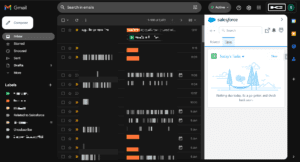
Gmail Integration and Einstein Activity Capture can work together, but they solve different problems. Gmail Integration gives users a Salesforce panel inside Gmail. Einstein Activity Capture focuses on capturing supported email and calendar activity automatically.
| Capability | Gmail Integration | Einstein Activity Capture |
|---|---|---|
| Main purpose | Access Salesforce records and work with CRM data from Gmail. | Automatically capture supported email and event activity. |
| Email logging | Users can manually relate emails to Salesforce records. | Configured activity capture can log supported emails automatically. |
| Records in Gmail | Yes, through the integration panel. | Its primary purpose is activity capture, not replacing the Gmail record panel. |
| Who configures it? | A Salesforce administrator enables the integration; each user completes the Gmail-side connection. | An administrator configures capture settings and assigns users; users may need to authorize their Google accounts. |
| Licensing | Availability depends on the Salesforce product and edition. Check the current requirements for your org. | Standard availability and additional capabilities vary by edition, add-on, and license assignment. |
| Best for | Teams that need CRM records and manual email logging in Gmail. | Teams that want to reduce manual activity capture. |
Which should you choose? If users need to view Salesforce records and choose which emails to log, start with Gmail Integration. If the priority is automatically capturing email and event activity, evaluate Einstein Activity Capture. Many teams use both, subject to their requirements and licensing.
For current requirements, review Salesforce’s official guides: Gmail Integration Setup and Activation Guide and Einstein Activity Capture connection methods.
How to Integrate Salesforce with Gmail (Step-by-Step)
Setting up Salesforce Gmail integration involves administrator configuration and a short user-side connection process. Complete the administrator steps first, then ask each user to connect their Gmail account.
Admin Setup: Configure Salesforce
- Check prerequisites. Confirm that your Salesforce edition, user permissions, browser, and Google Workspace environment meet the current requirements.
- Enable Enhanced Email. In Salesforce Setup, search for Enhanced Email and verify that it is enabled as required for your Gmail configuration.
- Enable Gmail Integration. In Setup, search for Gmail Integration and Sync. Open the settings and enable the option that lets users access Salesforce records from Gmail.
- Review email settings. Configure the Enhanced Email and Gmail settings to control how users relate messages to Salesforce records.
- Configure the email panel. If your team needs a tailored experience, use the available email application pane and Lightning App Builder options to determine which supported components users see.
- Set permissions. Confirm that users have the permissions and access required to view or update the Salesforce records they need.
- Configure Einstein Activity Capture if needed. In Setup, search for Einstein Activity Capture, select the appropriate Google connection method, configure capture settings, and assign the relevant users.
- Test before rollout. Test email logging, record access, activity capture, and any required sharing or privacy settings with a small user group.
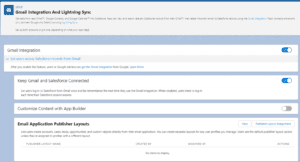
User Setup: Connect Gmail to Salesforce
- Open the Chrome browser and install the official Salesforce Gmail Integration extension using the extension link provided in Salesforce’s current setup documentation.
- Open Gmail and refresh the page if needed.
- Locate the Salesforce integration panel in Gmail.
- Sign in to Salesforce and complete the authentication steps.
- Authorize the Google account if prompted for Einstein Activity Capture or another configured connection.
- Open an email and check whether related Salesforce records appear.
- Test logging an email to the correct record. If automatic capture is enabled, confirm that the expected activity appears after allowing for processing time.
Important: Salesforce’s current setup documentation describes the Gmail Integration Chrome extension. Avoid assuming that older instructions for legacy extensions or older Gmail add-ons reflect the current setup. Check the official Gmail Integration setup guide for supported requirements and the latest steps.
For a broader implementation approach, read our guide to Salesforce integration best practices.
Features of the Salesforce Gmail Integration Plugin
The Salesforce Gmail Integration extension brings supported Salesforce functionality into the Gmail experience. The exact features depend on your configuration and user permissions.
- View related Salesforce records: Review records associated with an email address, such as leads, contacts, accounts, and opportunities.
- Log emails: Relate supported emails to the relevant Salesforce records when manual logging is available.
- Create and update records: Use the available panel actions to create or update supported Salesforce records without leaving Gmail.
- Access activity history: Review supported related activities and record details from the email context.
- Use additional productivity features: Depending on licensing and configuration, Salesforce Inbox capabilities may provide features such as email tracking, scheduled sending, templates, and meeting-related tools.
Salesforce Lightning for Gmail vs. Salesforce for Chrome
Salesforce’s Gmail experience has evolved over time, and older articles may use terms such as “Salesforce Lightning for Gmail,” “Gmail Salesforce plugin,” or “Salesforce for Chrome.” For current implementation work, use Salesforce’s latest documentation for the Gmail Integration Chrome extension and related email productivity features.
The Chrome extension provides the Salesforce integration panel in the browser. Einstein Activity Capture is a separate capability that can capture supported email and event activity. Salesforce Inbox productivity features can add more tools, but availability may require a qualifying edition, permission set, or additional license.
Before selecting an approach, check the current Salesforce documentation for Salesforce and Gmail integration options and Inbox feature licensing and permissions.
Turn Gmail Emails into Salesforce Leads
When a prospective customer emails your team, the information in that message can be a useful starting point for a Salesforce lead. With Gmail Integration, users can work with supported Salesforce records from their inbox and create records where the configured actions and permissions allow it. However, displaying an email in Gmail does not automatically mean Salesforce will create a new lead from every message.
If your team receives a high volume of enquiries and needs a more structured process for converting email information into Salesforce leads, explore Kizzy Consulting’s Salesforce Email-to-Lead solution. A tailored workflow can help reduce manual data entry and route incoming enquiries into the right CRM process.
For teams with more complex requirements, define how the solution should handle duplicate contacts, existing leads, field mapping, consent, validation, assignment rules, and exceptions before automating lead creation.
AI in the Gmail Sidebar: Einstein and Agentforce
Salesforce’s Gmail integration can do more than display CRM records. Depending on the supported edition, enabled features, permissions, and configuration, AI capabilities may help users work with customer context while handling emails and events.
Einstein and Email Productivity
Salesforce Einstein capabilities can support productivity workflows such as activity capture and, where the appropriate Inbox features are available, email-related assistance. The capabilities a user sees depend on the specific Salesforce product and license assigned to them. Einstein Activity Capture itself focuses on supported email and event capture; it should not be treated as a general-purpose email-writing assistant in every configuration.
Agentforce in the Gmail Integration
Salesforce documents Agentforce access through the Gmail integration’s Chrome side panel in supported Lightning Experience editions. In the documented experience, users access Agentforce through the Einstein entry in the side panel. What the agent can do depends on the agent configuration, permissions, available actions, and the organization’s Salesforce setup.
AI does not automatically gain permission to access every CRM record or take every action. Administrators should review data access, action permissions, security controls, and governance before making AI-assisted workflows available to users.
For implementation support, explore Kizzy Consulting’s Agentforce consulting services. We help teams assess use cases, Salesforce data access, integrations, and deployment requirements.
Official reference: Use Agentforce with Your Gmail Integration.
Best Practices for Salesforce Gmail Integration
- Configure for the team’s workflow: Show users the record details and actions they need, without cluttering the integration panel.
- Define email logging rules: Establish which emails should be logged, which records they should relate to, and when manual logging is appropriate.
- Review data quality: Keep contact information, lead records, and account data accurate to improve record matching.
- Check access and privacy: Confirm that record permissions, email sharing settings, retention expectations, and internal policies are respected.
- Train users: Show representatives how to connect Gmail, identify related records, log messages, and report sync issues.
- Test before scaling: Pilot the integration with a small group and validate the behavior before rolling it out across the organization.
- Monitor the configuration: Recheck connected accounts, capture settings, permissions, and integration behavior when Salesforce or Google Workspace settings change.
Tips for Maximizing Productivity with Gmail Salesforce Integration
- Use approved email templates: Standardize common follow-ups and customer communications while keeping messages relevant.
- Organize Gmail with filters and labels: Use inbox organization to help prioritize customer messages and reduce distractions.
- Use Salesforce tasks and reminders: Turn follow-up commitments into trackable work rather than relying only on inbox flags.
- Keep records connected: Relate emails and meetings to the appropriate leads, contacts, opportunities, or other supported records.
- Review mobile requirements separately: Do not assume the desktop Chrome extension works inside the Gmail mobile app. Check the supported Salesforce mobile and email workflows for your environment.
Common Issues and Solutions for Salesforce Gmail Integration
- The Salesforce panel does not appear: Check that the correct extension is installed and enabled, reload Gmail, and verify that the administrator enabled Gmail Integration.
- Users cannot sign in: Check Salesforce authentication, connected accounts, browser restrictions, and any organization-level Google Workspace security policies.
- Emails are not logging: Confirm that Enhanced Email and the relevant integration settings are configured, that the user has permission to access the record, and that the correct record was selected.
- Automatic activity capture is not working: Check the Einstein Activity Capture configuration, assigned users, Google authorization, capture settings, and processing delays.
- Records are not appearing: Verify the sender’s email address, Salesforce record data, record visibility, and user permissions.
- Google blocks account authorization: If Google Workspace security controls block the connection, ask the Google Workspace administrator to review the relevant application trust and access policies.
- Users are confused by the interface: Provide concise setup instructions and training on the exact features enabled in your organization’s Salesforce environment.
For troubleshooting, consult Salesforce’s Gmail Integration setup and activation guide and its documentation on Google Advanced Protection authorization errors.
When Should You Consider a Third-Party Gmail Salesforce Integration Tool?
The native Salesforce integration may be sufficient for teams that need CRM record access and email logging. Consider a third-party tool or a custom integration when the business process requires capabilities that your current Salesforce configuration does not provide.
- Specialized automation: You need additional rules for parsing, routing, classifying, or processing incoming emails.
- Custom data mapping: Incoming email details must be mapped to specific Salesforce fields or objects.
- Complex workflows: Email events must trigger approvals, notifications, assignments, or downstream processes.
- Additional integrations: The workflow needs to connect Salesforce and Gmail with other business systems.
- Advanced reporting: You need defined measures for email-to-lead conversion, processing exceptions, or follow-up performance.
Evaluate data security, supported features, total cost, administration, and maintenance before selecting a third-party tool. A more complex integration is not automatically a better one; choose the simplest approach that meets your business requirements.
FAQs: Salesforce Gmail Integration
1. How do I integrate Gmail with Salesforce?
Enable Gmail Integration in Salesforce Setup, verify the required Enhanced Email settings, and configure the integration panel. Users then install the official Salesforce Gmail Integration Chrome extension and connect their Salesforce account. If you need automatic email and event capture, configure Einstein Activity Capture separately and confirm the applicable licensing and permissions.
2. What is Salesforce for Gmail?
Salesforce for Gmail generally refers to Salesforce’s Gmail integration experience, which allows users to view related CRM records and work with Salesforce data from Gmail. Depending on the setup, users can also log emails and use additional productivity or AI features. For current implementation instructions, follow Salesforce’s documentation for Gmail Integration.
3. Is the Salesforce Gmail integration free?
The base Gmail Integration may be available with qualifying Salesforce editions without a separate integration charge, but availability depends on your product and edition. Einstein Activity Capture and Salesforce Inbox productivity features have their own edition, feature, and licensing requirements. Confirm your organization’s entitlements with Salesforce before rollout.
4. Is there a Salesforce plugin for Gmail?
Yes. Salesforce provides a Gmail integration experience through its Chrome extension. The extension lets supported users access Salesforce records and work with email-related CRM actions from Gmail. Install the current official extension and follow Salesforce’s setup documentation rather than relying on older instructions for legacy plugins.
5. Gmail integration or Einstein Activity Capture: which do I need?
Choose Gmail Integration when users need a Salesforce panel in Gmail and want to access or manually log emails to CRM records. Choose Einstein Activity Capture when you want supported email and event activity to be captured automatically. They can be used together, depending on your requirements, configuration, edition, and licenses.
6. Can Salesforce create leads from Gmail emails?
Users can create Salesforce records from the Gmail integration where the available actions and permissions allow it, but the integration does not automatically create a new lead from every incoming email by default. If you need a structured process to convert email enquiries into leads, consider an Email-to-Lead workflow with appropriate field mapping, duplicate handling, validation, and assignment rules.
Need Help Integrating Salesforce with Gmail?
Every Salesforce organization has different requirements for email logging, data access, automation, and user adoption. Kizzy Consulting can help assess your current setup, configure the integration, review activity capture, and identify opportunities to streamline email-to-CRM workflows.
Conclusion
Salesforce Gmail integration gives teams a practical way to access CRM records and manage email-related activities without constantly switching applications. Gmail Integration provides the panel and supported record actions, while Einstein Activity Capture can automate the capture of supported email and event activity. Agentforce may add AI-assisted capabilities in supported configurations.
For the best results, confirm the current product requirements, separate administrator setup from user onboarding, test activity logging and permissions, and choose automation that matches your workflow. A well-planned implementation helps reduce manual effort while keeping customer data organized and accessible.
Contact Kizzy Consulting for Salesforce integration consultation or a demonstration.
Kizzy Consulting
Kizzy Consulting is a Salesforce Ridge Partner serving clients in the USA, India, and Australia. The team has delivered Salesforce and AI projects across industries including financial services, insurance, retail, manufacturing, real estate, logistics, and healthcare.
For a consultation, email [email protected] or contact us online.