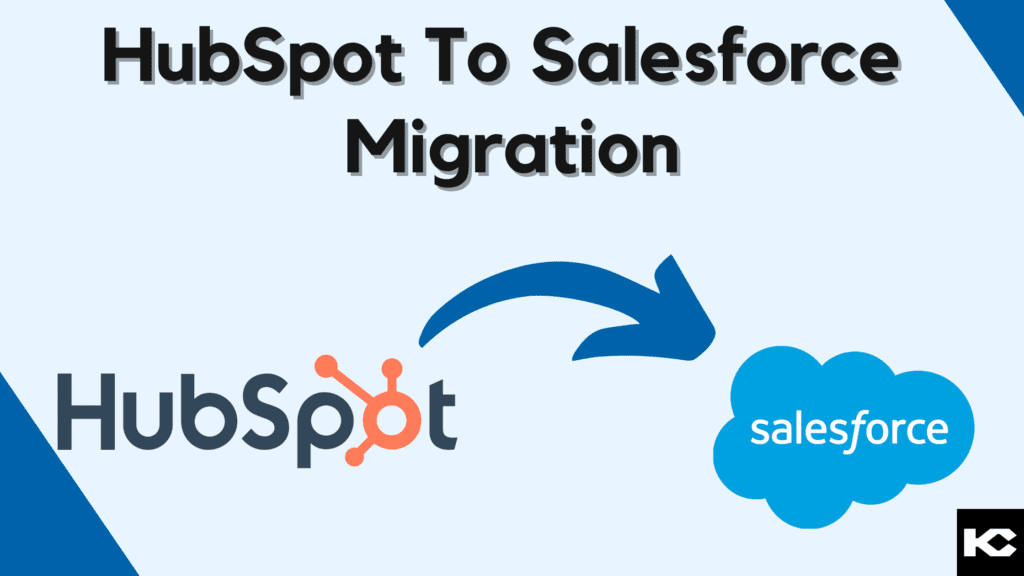
HubSpot to Salesforce Migration: Complete Guide 2026
⏱ 6 min read
CRM MIGRATION GUIDE
Learn how to migrate contacts, companies, deals, tickets, activities, workflows, and business processes from HubSpot to Salesforce while protecting data quality and minimizing disruption.
Quick Answer: How to Migrate from HubSpot to Salesforce
To migrate data from HubSpot to Salesforce, audit your existing CRM, map HubSpot objects and properties to Salesforce objects and fields, clean and export the data, configure Salesforce, and import records in a controlled sequence. Test a sample migration first, preserve record relationships and ownership, validate email history and attachments where supported, and complete a planned cutover with user acceptance testing.
What Is HubSpot to Salesforce Migration?
A HubSpot to Salesforce migration involves transferring CRM data, relationships, and relevant business processes from HubSpot into Salesforce. Depending on the existing configuration, the migration may include contacts, companies, deals, tickets, activities, custom properties, notes, engagement history, and associated records.
The process also provides an opportunity to redesign workflows rather than reproduce the existing HubSpot configuration exactly. This is particularly important when Salesforce will become the central CRM platform for sales, service, automation, reporting, integrations, and AI-powered workflows.
Data Migration
Transfer and transform CRM records while preserving important relationships.
Transfer and transform CRM records while preserving important relationships.
Process Migration
Review and rebuild automation, assignment rules, and approval requirements.
Review and rebuild automation, assignment rules, and approval requirements.
System Integration
Reconnect applications and services that depend on CRM data.
Reconnect applications and services that depend on CRM data.
Validation
Check record counts, relationships, ownership, permissions, reports, and workflows.
Check record counts, relationships, ownership, permissions, reports, and workflows.
Why Migrate from HubSpot to Salesforce?
Organizations may consider a HubSpot to Salesforce migration when their CRM requirements become more complex or when they need greater control over customization, integrations, data models, reporting, and cross-functional processes.
Advanced Customization
Configure data models, business processes, automation, user experiences, and applications around specific business requirements.
Scalability
Support evolving sales, service, data, automation, and integration requirements as the organization grows.
Integration Potential
Connect CRM processes with business applications, data platforms, communication tools, and other systems.
Enterprise Requirements
Address complex security, reporting, governance, automation, and multi-team requirements.
Connected CRM Operations
Bring sales, service, customer data, analytics, and automation into a connected CRM ecosystem.
Reporting and Analytics
Build reporting around sales performance, customer operations, and cross-functional business processes.
What Data Can Be Migrated from HubSpot to Salesforce?
The migration scope depends on the HubSpot configuration, Salesforce data model, available export options, integrations, and business requirements. Common data includes:
Contacts
Customer and prospect information
Customer and prospect information
Companies
Business and account information
Business and account information
Leads
Prospect and qualification data
Prospect and qualification data
Deals
Sales opportunities and revenue information
Sales opportunities and revenue information
Tickets
Customer support records and case context
Customer support records and case context
Engagements
Tasks, calls, meetings, and other activities
Tasks, calls, meetings, and other activities
Custom Properties
Business-specific data attributes
Business-specific data attributes
Notes and History
Relevant customer context, subject to export support
Relevant customer context, subject to export support
Not every HubSpot record type or engagement automatically maps to a standard Salesforce object. Confirm the supported export method and destination for each data category before migration.
HubSpot to Salesforce Object Mapping
HubSpot and Salesforce organize CRM information differently. Before importing records, create a source-to-target mapping that identifies the destination object, field transformations, record owners, and relationships. The mapping below is a starting point and should be adjusted to the target Salesforce architecture.
| HubSpot Object | Possible Salesforce Destination | Mapping Considerations |
|---|---|---|
| Contacts | Leads or Contacts | Choose Leads for unqualified prospects when appropriate; use Contacts for people associated with Accounts. Define conversion and deduplication rules. |
| Companies | Accounts | Map company names, domains, industry, addresses, custom properties, parent relationships, and record owners. |
| Deals | Opportunities | Map deal name, amount, stage, close date, pipeline, associated Account, and owner. Salesforce stages may not match HubSpot stages directly. |
| Tickets | Cases | Map status, priority, subject, description, contact, Account, and ownership. Confirm the Salesforce service process and required fields. |
| Engagements | Activities, such as Tasks and Events | Map activity type, date, subject, owner, and related records. Emails, calls, and meetings may need different handling depending on their format and export support. |
| Custom properties | Matching or newly created Salesforce fields | Check field types, picklist values, length limits, required fields, formulas, and validation rules. |
| Record owners | Salesforce record OwnerId | Match HubSpot owners to active Salesforce users or an agreed fallback owner. Verify permissions and inactive-user handling. |
Preserve source record IDs in dedicated external ID fields where appropriate. These identifiers can help match related records, prevent duplicates, and support reconciliation after import.
Ways to Migrate Data from HubSpot to Salesforce
There is no single migration method that fits every organization. The right approach depends on record volume, data complexity, integration requirements, technical resources, and the amount of transformation needed.
01
Manual Data Entry
May be sufficient for a small number of records, but becomes time-consuming and error-prone at larger volumes.
02
CSV Export and Import
Export supported HubSpot data, prepare the files, map fields, and import records using an appropriate Salesforce tool. Relationships may require multiple import stages.
03
ETL or Middleware
Integration platforms can support transformation, field mapping, repeatable data movement, and synchronization when the use case requires them.
04
API-Based Migration
APIs can enable controlled transfers and custom transformations. The implementation must account for authentication, API limits, retries, error handling, and associations.
05
Professional Migration Services
Migration specialists can manage discovery, mapping, transformation, testing, integration dependencies, cutover, and post-migration validation.
Migration Tools Compared
The best tool depends on the migration scope. Salesforce Data Import Wizard and Data Loader are options for importing supported records into Salesforce; ETL or middleware tools may be appropriate for more complex transformations and recurring synchronization. Running both CRMs in parallel is a cutover strategy, not a data-import tool.
| Option | Best Fit | Key Considerations |
|---|---|---|
| Data Import Wizard | Supported standard and custom object imports with a guided interface. | Check supported objects, file limits, matching rules, field mapping, and relationship requirements. |
| Data Loader | Bulk inserts, updates, upserts, exports, and deletes for supported Salesforce records. | Requires careful CSV preparation, permissions, ID handling, and review of success and error files. |
| ETL or Middleware | Complex transformations, multiple systems, repeatable loads, or ongoing synchronization. | Evaluate licensing, connectors, API limits, monitoring, retry logic, and support for required objects. |
| Parallel CRM Operation | A phased transition where teams need a controlled validation period before full cutover. | Define the system of record, synchronization rules, duplicate prevention, ownership of updates, and a clear end date. |
Before choosing a tool, confirm which HubSpot objects, associations, activities, and attachments it can export or transfer. The comparison above describes general options and does not imply that Kizzy uses a specific third-party migration platform.
Planning a Salesforce Migration?
Start by understanding your existing CRM architecture, data quality, integrations, and future Salesforce requirements.
HubSpot to Salesforce Migration Process
1. Assess the Existing HubSpot Environment
Inventory objects, properties, workflows, integrations, reports, users, lifecycle stages, activities, and dependencies before defining the migration scope.
2. Design the Salesforce Data Model
Determine how HubSpot records map to Salesforce objects, fields, record types, ownership structures, and business processes.
3. Clean and Prepare the Data
Identify duplicates, incomplete records, inconsistent values, outdated information, invalid formats, and unnecessary data before migration.
4. Map and Transform Data
Document source-to-target field mappings, picklist translations, ID handling, owner mapping, and relationship transformations.
5. Configure Salesforce
Configure objects, fields, permissions, automation, reports, integrations, and other required Salesforce components.
6. Perform a Test Migration
Migrate a representative dataset and validate record counts, field values, relationships, ownership, automation, and reports.
7. Conduct User Acceptance Testing
Ask business users to test real-world processes and confirm that Salesforce supports their day-to-day requirements.
8. Execute the Final Cutover
Complete the final data transfer, validate the production environment, activate required processes, communicate the change, and support users after go-live.
Data Quality Considerations During Migration
Data quality is one of the most important factors in a successful HubSpot to Salesforce migration. Moving inaccurate or duplicated information into a new CRM simply transfers the underlying problem.
- Deduplication: Identify duplicate contacts, companies, leads, and other records.
- Field Standardization: Normalize values such as industry, country, lifecycle stage, and lead status.
- Data Completeness: Identify missing information in critical fields.
- Relationship Mapping: Preserve links between people, companies, opportunities, campaigns, and activities.
- Owner Mapping: Match HubSpot owners to the correct Salesforce users or agreed fallback owners.
- Validation: Compare source and destination records after migration.
- Governance: Establish rules for maintaining data quality after migration.
Migrating HubSpot Workflows to Salesforce
Workflows should not automatically be copied one-to-one. HubSpot automation and Salesforce automation use different architectures, so each workflow should be reviewed against the business outcome it supports.
| HubSpot Process | Salesforce Consideration |
|---|---|
| Lead nurturing | Review Salesforce automation and marketing requirements. |
| Lead assignment | Configure assignment and routing logic based on business rules. |
| Follow-up tasks | Recreate task generation, timing, and ownership logic. |
| Lifecycle updates | Map lifecycle stages to Salesforce lead, opportunity, or custom processes. |
| Notifications | Rebuild alerts and notifications around Salesforce processes. |
Review Integrations Before the Migration
CRM migrations can affect more than the CRM itself. Any application that reads from HubSpot, writes to HubSpot, or depends on HubSpot identifiers should be reviewed before the Salesforce cutover.
Marketing Platforms
Review campaign data, lead synchronization, and consent requirements.
ERP Systems
Review customer, order, and transaction data flows.
Customer Service Tools
Map customer, ticket, and case-related information.
Analytics Platforms
Rebuild reporting and downstream data connections.
What Happens to HubSpot Email History and Attachments?
Email history and attachments require specific planning because they may not transfer through the same process as contacts, companies, or deals. Their migration depends on the type of activity, how it is stored in HubSpot, the available export options, and the Salesforce destination.
- Emails and engagement history: Identify which emails, calls, meetings, and other activities must be retained. Confirm whether the selected export or migration tool supports them.
- Attachments and files: Inventory required files and confirm how each will be exported, stored, linked, and accessed after migration.
- Associations: Preserve links between activities, contacts, companies, deals, and other relevant records where the destination supports them.
- Access and retention: Check permissions, retention requirements, and any business or regulatory obligations before deciding what to migrate.
- Validation: Test representative emails and attachments in Salesforce before the production cutover.
Do not assume that a standard CSV export includes complete email history or attachments. Validate the required data types and transfer method during discovery.
Post-Migration Validation Checklist
After importing data, reconcile the Salesforce environment against the approved migration scope. A successful import message alone does not prove that all records, relationships, and business processes migrated correctly.
Record Counts
- Compare source and destination counts.
- Review rejected, skipped, and duplicate records.
- Investigate discrepancies by object.
Owner Mapping
- Verify record owners and fallback assignments.
- Check ownership of key sales records.
- Confirm user access and permissions.
Associations and Relationships
- Check Contacts and Accounts.
- Verify Opportunities and Cases.
- Confirm activity relationships and external IDs.
Attachments and Email History
- Test access to migrated files.
- Review required email and engagement records.
- Confirm links to the correct CRM records.
Fields and Data Quality
- Validate critical field values and picklists.
- Check required fields and formatting.
- Review duplicates and missing data.
Business Processes
- Test automation and assignment rules.
- Review reports and dashboards.
- Complete user acceptance testing.
Document validation results, unresolved issues, approved exceptions, and sign-off from the business owners before closing the migration.
Can HubSpot and Salesforce Run in Parallel During Migration?
Yes. An organization can operate HubSpot and Salesforce in parallel for a defined transition period when the architecture, licensing, integrations, and business processes support it. Parallel operation can help teams validate data, compare workflows, and move users in phases, but it needs clear controls.
Define the System of Record
Specify which platform owns each type of record and which system users should update.
Control Synchronization
Document which fields synchronize, in which direction, and how conflicts are resolved.
Prevent Duplicate Updates
Use stable identifiers, matching rules, and monitoring to reduce duplicate creation and update loops.
Set a Cutover Date
Define the transition deadline, final synchronization, validation steps, and process for retiring the old workflow.
Avoid uncontrolled dual entry. Without documented ownership and synchronization rules, parallel operation can create conflicting field values, duplicate records, and inconsistent reporting.
After Migration: Getting Your Data Ready for Agentforce
A Salesforce migration can establish the foundation for future AI initiatives, but moving data alone does not make it ready for Agentforce. AI use cases depend on reliable records, meaningful relationships, appropriate access controls, and clearly defined business processes.
- Improve data quality: Resolve duplicates, incomplete fields, and inconsistent values in important records.
- Preserve context: Maintain useful relationships between Accounts, Contacts, Opportunities, Cases, and relevant activities.
- Review access controls: Ensure users and AI-enabled processes access only the data they are authorized to use.
- Document business processes: Define the workflows, actions, and decision points that an AI agent may need to support.
- Validate the use case: Test the quality of the underlying data and the outcomes of the proposed AI workflow before production deployment.
Explore Kizzy’s Data Foundation for AI services to learn more about preparing enterprise data for AI initiatives.
Common HubSpot to Salesforce Migration Challenges
Data Mapping
The systems may organize fields, objects, relationships, and lifecycle information differently.
Duplicate Records
Duplicate contacts or companies can create inaccurate reporting and fragmented customer records.
Workflow Redesign
Existing HubSpot automation may need to be redesigned around Salesforce’s data and automation architecture.
Integration Dependencies
Connected systems may require new integrations, authentication, field mappings, or synchronization logic.
User Adoption
Users need training and clear process guidance when moving to a different CRM interface and operating model.
Cutover Risk
Poorly planned cutovers can create downtime, inconsistent data, or disruption to sales operations.
HubSpot to Salesforce Migration Best Practices
- Define the target Salesforce architecture first. Decide where records belong before moving data.
- Audit the HubSpot environment. Identify active records, obsolete data, workflows, integrations, and dependencies.
- Clean data before migration. Deduplicate and standardize records before importing them into Salesforce.
- Document field and object mapping. Maintain a clear source-to-target mapping for every migrated data element.
- Preserve relationships and owners. Plan for IDs, associations, ownership, and access requirements.
- Test with a representative sample. Validate the migration before performing the full production transfer.
- Validate business processes. Confirm that automation, reports, permissions, integrations, and user journeys work as intended.
- Plan the cutover carefully. Define freeze periods, final exports, validation steps, rollback considerations, and communication plans.
- Continue improving after go-live. Monitor data quality, adoption, automation, and system performance after migration.
Need Help With Salesforce Migration?
Kizzy Consulting helps organizations plan and implement Salesforce solutions across data migration, integrations, automation, CRM architecture, and ongoing optimization.
Discuss Your HubSpot to Salesforce Migration
Share your current CRM setup and migration requirements with our Salesforce team.
Frequently Asked Questions
How do I migrate data from HubSpot to Salesforce?
Audit your HubSpot data, map objects and properties to Salesforce, clean records, choose an import or migration method, and test a representative dataset. Then migrate the approved data, validate record counts, ownership, associations, activities, and integrations, and complete a controlled production cutover.
How do HubSpot objects map to Salesforce objects?
HubSpot Companies commonly map to Salesforce Accounts, while Deals map to Opportunities and Tickets may map to Cases. HubSpot Contacts may map to Salesforce Leads or Contacts depending on qualification and account relationships. Engagements may map to Salesforce Tasks, Events, or other activity records. Custom properties, owners, and associations require explicit mapping.
Which tool is best for a HubSpot to Salesforce data migration?
The best tool depends on data volume, supported objects, transformation needs, and integration complexity. Salesforce Data Import Wizard may suit supported guided imports, while Data Loader supports bulk operations on Salesforce records. ETL, middleware, or API-based approaches may be better for complex transformations, associations, or repeatable synchronization. Test the chosen approach before the full migration.
How long does a HubSpot to Salesforce migration take?
The timeline depends on record volume, data quality, custom properties, object relationships, workflow complexity, integrations, email history, and testing requirements. A small, straightforward transfer may take days or weeks, while a complex enterprise migration can take several weeks or months. A discovery assessment is needed to estimate the schedule reliably.
Can HubSpot and Salesforce run in parallel during migration?
Yes. Both platforms can operate in parallel for a defined transition period if the organization has clear system-of-record rules, controlled synchronization, duplicate prevention, and a cutover plan. Define which system owns each data type and how conflicts are resolved to avoid inconsistent records and reporting.
What happens to HubSpot email history and attachments?
Email history and attachments require separate validation because standard exports may not transfer every activity, file, or association. Confirm what the selected export or migration method supports, identify the required Salesforce destination, preserve relevant relationships where possible, and test access to representative emails and files before cutover.
Conclusion
HubSpot to Salesforce migration is more than moving CRM records between platforms. It is an opportunity to improve data quality, redesign business processes, strengthen integrations, and establish a scalable Salesforce foundation.
Whether the migration uses CSV files, Salesforce import tools, ETL platforms, APIs, or professional migration services, careful planning and validation are essential. Mapping objects correctly, preserving ownership and relationships, reviewing email history, and testing business processes help organizations transition with greater confidence and prepare their CRM for future automation, analytics, and AI initiatives.